Flip Your
Images Instantly
Mirror your photos horizontally or vertically with a single click. High-performance, private, and stunningly simple to use.
Input Image
Or drag and drop image here
Options
Output Preview
Results Area
100% Private
Processing happens client-side. Your photos never leave your device and are never uploaded to our servers.
Instant Mirror
No waiting for uploads. Flip images in real-time with our high-performance canvas engine.
Dual Axis Flip
Toggle horizontal and vertical flips independently or simultaneously to get the perfect orientation.
Detail Control
Use our advanced zoom and pan controls to inspect every corner of your image before exporting.
How to Flip
Any Photo
Upload Your Image
Drag and drop any photo or click to browse. We support all common formats including JPG, PNG, and WebP.
Choose Flip Orientation
Toggle "Flip Horizontally" to swap left and right, or "Flip Vertically" to swap top and bottom.
Inspect with Zoom
Use the zoom and pan tools to see your changes in detail across both original and flipped previews.
Export & Save
Download the flipped image in high-quality PNG, JPG, or WebP instantly. No watermarks, ever.
Why Flip Your Images?
Correct orientation, create artistic symmetry, or fix selfies in seconds.
Correct Selfies
Fix mirrored selfies so text and features look exactly how they should in real life.
Creative Symmetry
Create stunning symmetrical patterns and artistic layouts by mirroring your photography.
Fix Orientation
Quickly fix photos that were taken upside down or in the wrong horizontal perspective.
Horizontal vs. Vertical Flip
Which one do you need?
Understanding the difference between the two mirroring axes is key to getting the perfect result.
Horizontal Flip
Reflects the image across its central vertical axis. Used for fixing selfies or reversing perspective.
- ✓ Fixes mirrored text
- ✓ Changes composition flow
Vertical Flip
Reflects the image across its central horizontal axis. Corrects upside-down photos.
- ✓ Corrects camera rotation errors
- ✓ Creates 'reflection' effects
The Power of
Visual Perspective
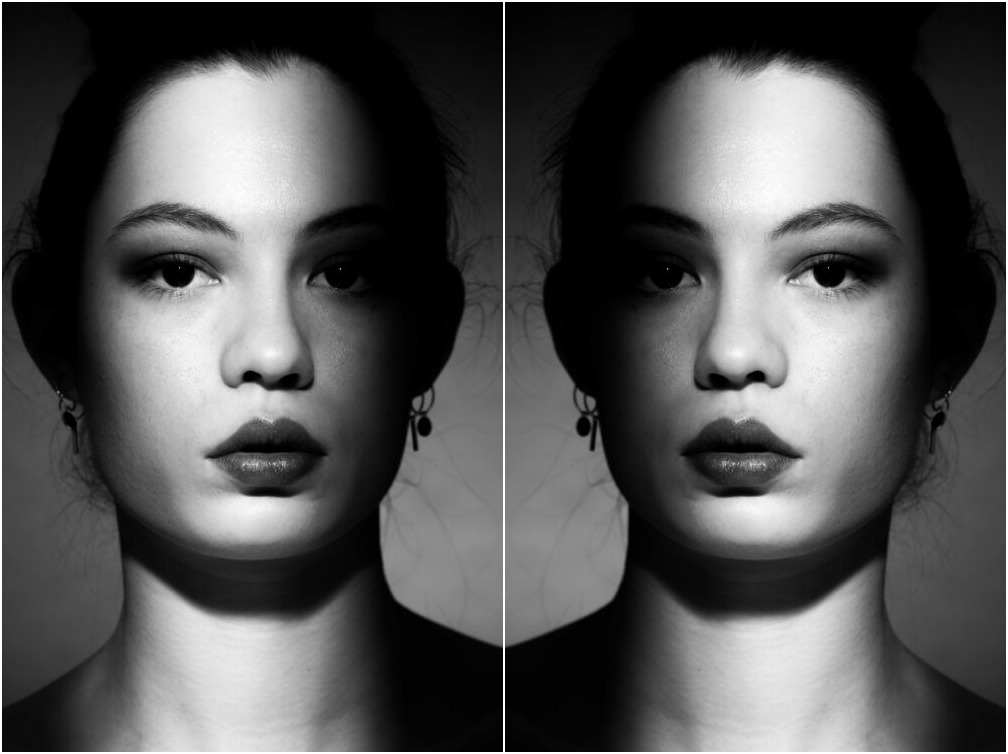
Flipping an image is more than just a technical correction; it's a fundamental tool in visual composition. By mirroring an image, you can change the way a viewer's eye moves through the frame, shifting the 'weight' of the subject from one side to the other.
Whether you're ensuring that the action leads into the page or fixing a front-facing camera's mirror effect, flipping provides total control over your digital assets.
Pro Tips for
Perfect Mirroring
Master the art of image orientation. Here are three technical tips for high-quality results.
🔄 Combined Flips
Toggle both horizontal and vertical flips to rotate an image 180 degrees instantly—handy for upside-down landscape shots.
🖼️ Check the Edge
Use the zoom tool to inspect the edges of your image after flipping, especially for PNGs with transparency.
📂 Smart Exporting
Use WebP for the best balance of quality and small file size, or PNG if you need to preserve existing transparency.
Frequently Asked Questions
Flipping an image creates a mirror-image version of it. A horizontal flip reflects the image across its vertical axis (swapping left and right), while a vertical flip reflects it across its horizontal axis (swapping top and bottom).
Yes, our image flipper is 100% free with no registration or hidden fees. You can process as many images as you need directly in your browser.
We take privacy seriously. All image processing happens locally within your web browser using JavaScript and Canvas. Your images are never uploaded to our servers or stored anywhere in the cloud.
Absolutely! You can toggle both horizontal and vertical flips simultaneously to achieve the exact orientation you need.
We support all common web image formats, including JPG, PNG, and WebP. You can also export your flipped result in any of these three formats.
Our tool features advanced viewport controls. You can zoom in for detail or out for a full view using the toolbar icons. To pan, simply click and drag (or touch and drag) anywhere on the image preview canvas.